
How to find old screenshots by their text on Mac
You remember the project name in a screenshot, but not its filename or when you took it. There are two different problems here: finding an image file you already saved, and keeping screenshots searchable from now on.
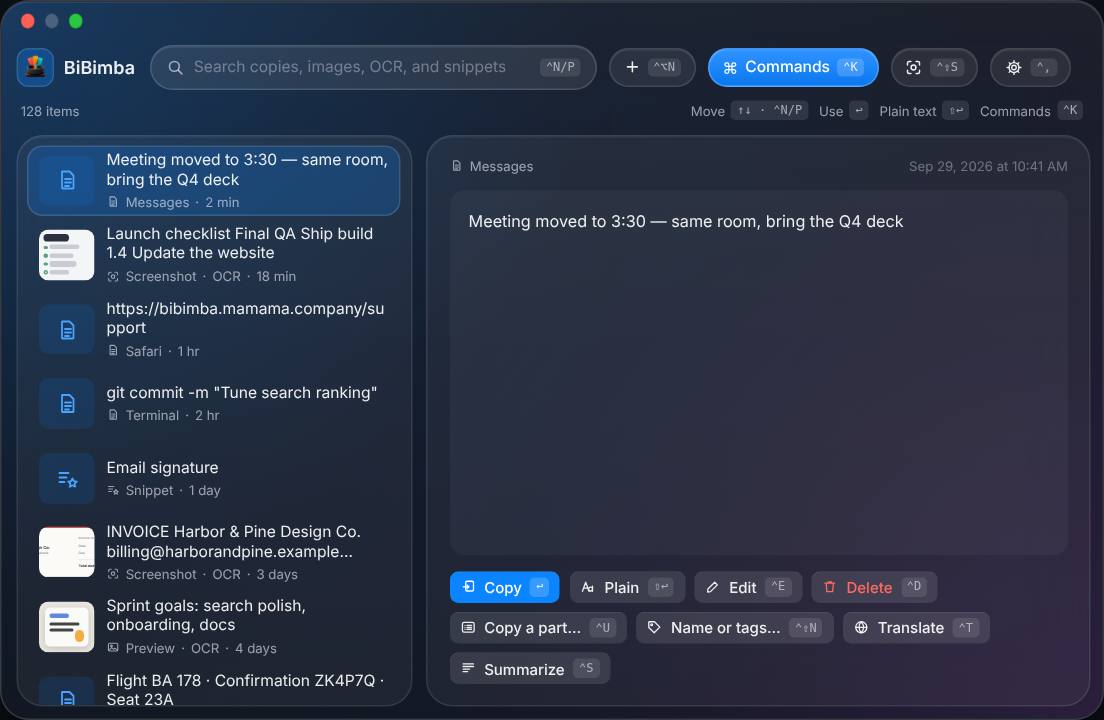
Already in BiBimba? Press Control-Shift-C, type a word from the screenshot, and select the matching image. BiBimba searches the OCR text saved with its history. It does not scan every image on your Mac or automatically import your old screenshot folder.
1. Start with the screenshots you already have
If the image predates your use of BiBimba, start in Finder. Open the folder where you usually save screenshots, or search This Mac if you do not know the location. A filename fragment or an approximate date can narrow the list.
- Open a Finder window and start a search.
- Use the + button to add criteria, such as Kind → Image and a creation date.
- Preview the likely matches. If you remember part of the filename, add a name criterion too.
These filters help locate the file; they are not a promise that every word inside every image is indexed. See Apple’s guide to narrowing Finder searches.
Once you have found a likely image, open it in Preview. Live Text lets you select recognized text and copy it. If text selection is unavailable, check Tools → Text Selection; recognition also depends on the image and supported language. This is useful for reading one image, rather than searching across a screenshot collection. See Apple’s Preview text-selection guide.
To keep that image searchable in BiBimba, display it at a readable size and capture its relevant area with Control-Shift-S. This creates a new screenshot in BiBimba; it does not import the original file or preserve its original capture date.
2. Capture once, find it later by a word
For screenshots you take with BiBimba, text recognition runs in the background and the result stays with the saved image. You do not need to run OCR manually each time you search.
- Capture: while BiBimba is running, press Control-Shift-S and select an area. The screenshot is copied to the clipboard and saved in BiBimba’s history.
- Search later: press Control-Shift-C to open the history and type a distinctive word you remember, such as a project name, shop name, or error code.
- Choose: move through results with Control-N / Control-P and check the image preview. Text clips and other matching items can appear alongside screenshots.
- Reuse the text: press Control-O on the image to copy its saved OCR result. Switch to your destination app and paste with Command-V.
These are the default app shortcuts, not macOS’s Command-Shift screenshot shortcuts. If you have changed them, check BiBimba Settings → Shortcuts. The separate Control-Shift-O screen-OCR command extracts text without saving a screenshot to history; use the screenshot command when you want the image available later.
Try a small, repeatable example
Put “Project Atlas — review Friday — reference 4832” in a text window, then capture it with BiBimba. After background OCR finishes, open the history and search for Atlas. Select the captured image and copy its OCR text. This checks the whole workflow with readable, non-sensitive sample text before you rely on it for real work.
3. If searching does not find the screenshot
- Check whether the image is in BiBimba. An old file on the Desktop is not automatically in its history. Clear your search and look for the capture first.
- Give a new capture time to finish OCR. Recognition runs in the background. Try a short, distinctive word instead of an entire sentence.
- Inspect the recognized text. Small, blurred, stylized, or low-contrast characters can be misread. Capture a clearer view if possible.
- Check the language. BiBimba detects OCR languages automatically; Settings → OCR languages lets you choose preferred languages. To retry an existing image with a specified language, select it and press Control-Shift-L, choose the language with the arrow keys, then press Return.
- Check retention settings. Count, age, and storage limits can remove older history. Search cannot restore a deleted item; save important screenshots as files outside the history as well.
OCR recognizes visible characters; it can make mistakes. Start with a word actually shown in the image rather than expecting a description of the scene to match. If capturing itself fails, check the screen-recording permission steps on our support page.
What stays on your Mac?
BiBimba performs screenshot OCR and history text search locally. These two features do not require Apple Intelligence; some separate AI features do. This does not mean the entire app is network-free: downloads, updates, and license services use network connections. See the privacy policy for details.
Try it with your own screenshots
BiBimba requires an Apple silicon Mac running macOS 26 or later. The in-app 7-day trial needs no email address or card and has no automatic billing. Start with a few screenshots and check whether you can find them by the words you remember.